Operation based routing from Mediator
Mediator is one very important component of SOA Suite. Mediator is routing mechanism, decide which BPEL or service need to be called. There can be five different type of routing, which is possible is using the mediator.
1. Operation Based Routing
2. Content based routing.
3. Dynamic Routing
4. Event based Routing.
5. Header Based routing.
5. Header Based routing.
In the current example we are talking about the operation based routing. Other examples which will be followed in the other following posts.
Now first what is mediator, its one of the basic component of SOA suite, which works as a router between the service calls and BPEL or any other component connected to Mediator.
Now first we are taking content based routing, here based on the content of payload we mediator will decide which BPEL/Service to be called.
For this we are taking a very simple example of payload and we are first designing the WSDL to allow four different operations
1. Add
2. Substract
3. Delete
4. Multiply
Application Creation.
1. First we need to create an SOA application. Open the jdevelper and select for SOA Application.

2. Now give name as "SOAOperationBasedRoutingDemo" and then say next.

3. Now name the project "MediatorOperationBasedRoutingDemo" and then click next. You can choose your own name also, map the instructions accordingly.
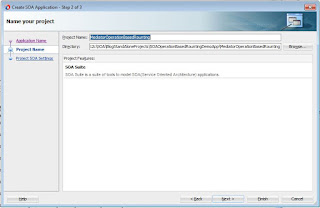
4. Now choose the empty composite and then then finish it will create an empty composite.

Schema Creation
1. Now select the schema and then say -> New --> Xml Schema and say OK.

2. Now name the schema as mediatorDemoSchema.xsd and say finish. you can change the namespace or can leave it.

4. Now create one request and one response element as give below, its a simple xsd. You can copy the schema from our project also.

5. Now we are going to create wsdl which is having two operations.

6. Now name the wsdl and MedatorOprationsWSDL.

8. Once WSDL is created then you need to create the message first name the message as "mathOperationRequestMessage". then create the part and select the referece value as MathRequest from the schema we created.


9. Once created then we need to create one more message as mathOperationResponseMessage. Choose the porty type.
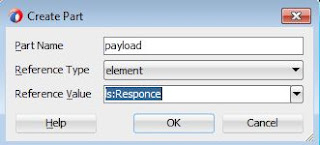

10.Once done we can create two opreations inside it, name it as given in the two images.


Mediator Creation
1. Now place the mediator from the component palate to the Composite and then we can choose wsdl now choose the wsdl from the location where we have created.


2. Let the service to be exposed as SOAP to be checked.

3. It will create the mediato like given below with two operations.

BPEL Creation
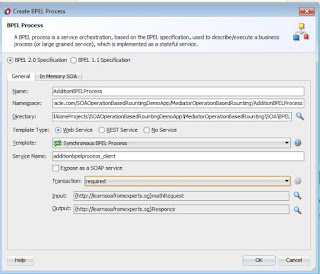
1. Now we can place the BPEL from the component palate to composite, name is AdditionBPELProcess and then choose template as :Synchronous" and then select input and putput type from the xsd.
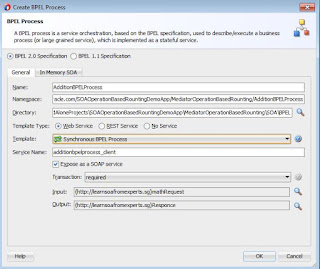

2. It will look like with all the parameters. now say ok.
.
3. Once BPEL is created then attach the wire between the BPEL and mediator it will ask you to select the operations select for the addition.

3. Now add a assign activity to BPEL and assign the sum of param1 and param2 to result and :"Success" string to status.


4. Complete assign will look like this.

5. Now go back to composite and add one more BPEL which is multiplicationBPEL.

6. Choose the same parameters as we did for the last BPEL and final outcome will look like below and thenclick ok , which will create one more MultiplicationBPEL.

7. Now add the multiplication BPEL to Mediator and select the operation as multiplication.

8. Now add a assign activity and assign multiplication to the result as given below.


Once you are done your process are ready for the deployment. Deploy the composite to the integrated server and test it.
Testing.
1. Select the operation as addition and then provide both the parameters, then click on test.


2. You can change the operations now and can choose the operation as multiplication now the multiplication BPEL will be executed.

Now first we are taking content based routing, here based on the content of payload we mediator will decide which BPEL/Service to be called.
For this we are taking a very simple example of payload and we are first designing the WSDL to allow four different operations
1. Add
2. Substract
3. Delete
4. Multiply
Application Creation.
1. First we need to create an SOA application. Open the jdevelper and select for SOA Application.

2. Now give name as "SOAOperationBasedRoutingDemo" and then say next.
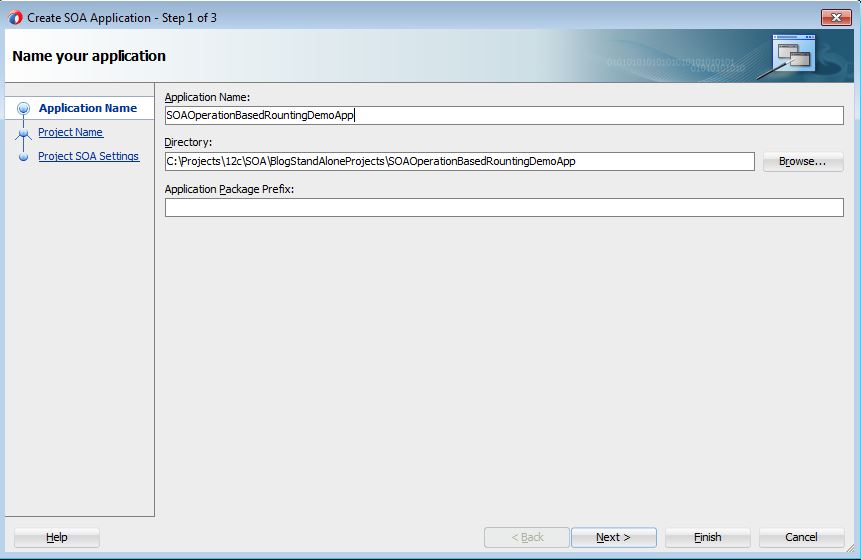
3. Now name the project "MediatorOperationBasedRoutingDemo" and then click next. You can choose your own name also, map the instructions accordingly.

4. Now choose the empty composite and then then finish it will create an empty composite.

Schema Creation
1. Now select the schema and then say -> New --> Xml Schema and say OK.

2. Now name the schema as mediatorDemoSchema.xsd and say finish. you can change the namespace or can leave it.

4. Now create one request and one response element as give below, its a simple xsd. You can copy the schema from our project also.

5. Now we are going to create wsdl which is having two operations.

6. Now name the wsdl and MedatorOprationsWSDL.

8. Once WSDL is created then you need to create the message first name the message as "mathOperationRequestMessage". then create the part and select the referece value as MathRequest from the schema we created.


9. Once created then we need to create one more message as mathOperationResponseMessage. Choose the porty type.


10.Once done we can create two opreations inside it, name it as given in the two images.


Mediator Creation
1. Now place the mediator from the component palate to the Composite and then we can choose wsdl now choose the wsdl from the location where we have created.


2. Let the service to be exposed as SOAP to be checked.

3. It will create the mediato like given below with two operations.

BPEL Creation
1. Now we can place the BPEL from the component palate to composite, name is AdditionBPELProcess and then choose template as :Synchronous" and then select input and putput type from the xsd.


2. It will look like with all the parameters. now say ok.
.

3. Once BPEL is created then attach the wire between the BPEL and mediator it will ask you to select the operations select for the addition.

3. Now add a assign activity to BPEL and assign the sum of param1 and param2 to result and :"Success" string to status.


4. Complete assign will look like this.

5. Now go back to composite and add one more BPEL which is multiplicationBPEL.

6. Choose the same parameters as we did for the last BPEL and final outcome will look like below and thenclick ok , which will create one more MultiplicationBPEL.

7. Now add the multiplication BPEL to Mediator and select the operation as multiplication.

8. Now add a assign activity and assign multiplication to the result as given below.


Once you are done your process are ready for the deployment. Deploy the composite to the integrated server and test it.
Testing.
1. Select the operation as addition and then provide both the parameters, then click on test.

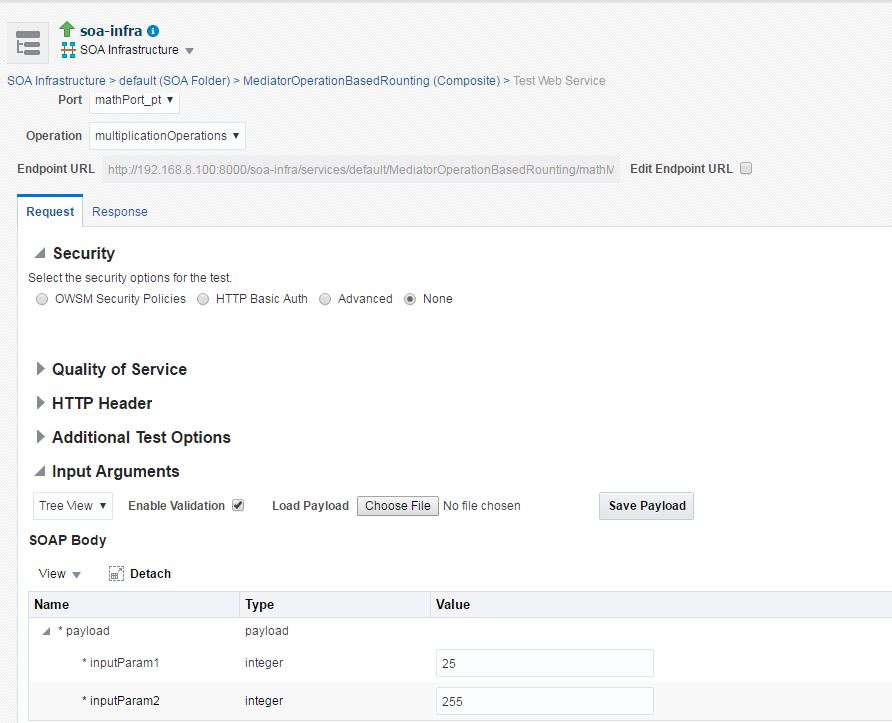
2. You can change the operations now and can choose the operation as multiplication now the multiplication BPEL will be executed.

Download the sample
You can download the sample from the location.
Exercise
1. Add one more operation to the Mediator, which is subtraction.
Please let me know the feedback. Happy to hear feedback from you.