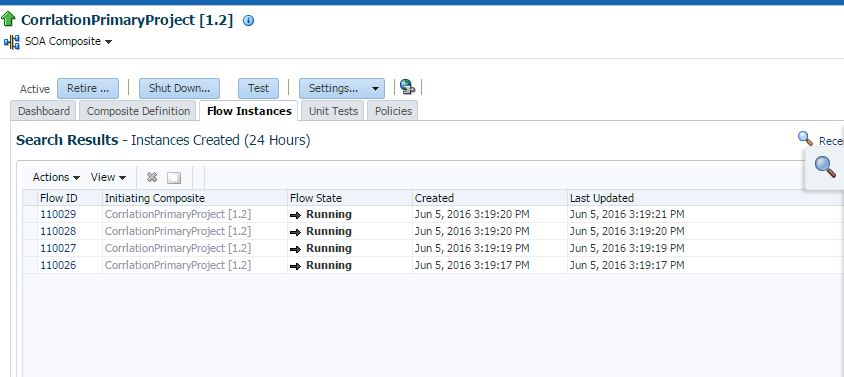
Correlation in SOA Process.
In most of the process,process run like an standalone processes. But some time we want to change the process behavior in the middle of the process.
Like we start the recruitment of an employee and process of employee creation been started. In between process will stop and will run further once we provide any input from the service which is for the background check.
Other requirement is webservice addressing, like from BPEL if we are calling a service A and then A will call service B and we want B to provide response back to initiator BPEL process, then we need concept of webservice addressing.
Hence until we received any input from the other service, first service will stop. The other challange in this is there are multiple may be running, hence to correlate we need some key. In this example we can take employeeId as a key for the correlation.
Hence collaboration set should be unique and BPEL process based on the correlation id decide which process it need to map.
Now taking the example, lets first create the Schema and then WSDL, post that we will create the BPEL process.
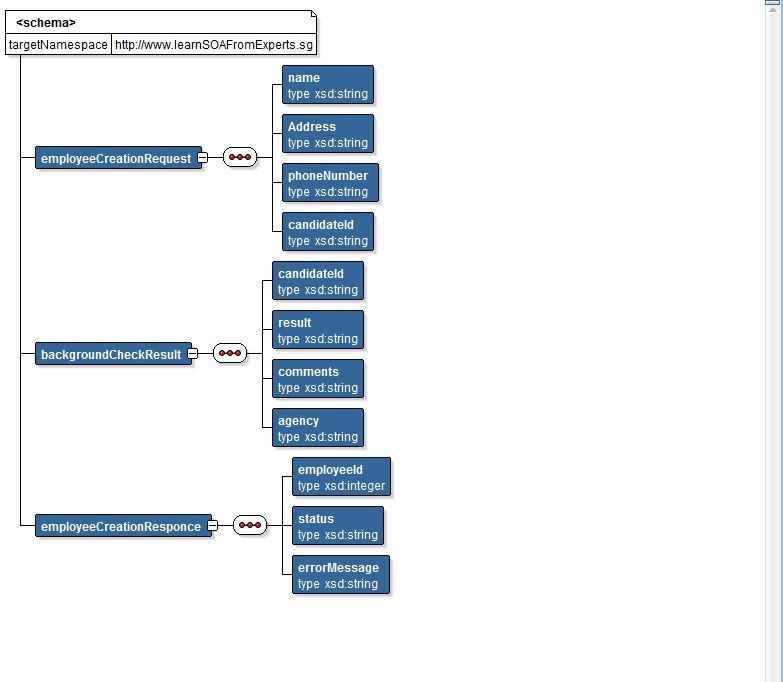
1. Schema :- In this example we are using a very simple schema of employee and his background check. Candidate Id is been used as a key, which will be unique for all the processes. Please copy the EmployeeBackgrpundCheck.xsd from the main process.
2. Creating the Application,
2.1) From the jdev -> File -> New Application and choose for a SOA application


2.3 Provide the project name and say next

2.4 Choose empty composite and provide the composite name. as "EmployeeCreationCheckCorrlation".
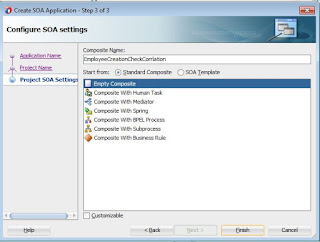
2.5 Now create the schema first, you can create the schema or copy if from our project, which is available for download copy the file "EmployeeBackgrpundCheck.xsd" to your project.


 BPEL Creation
1. Now Drop BPEL from the components to composite and name is EmployeeCreationCheckCorrlation, change the property to asynchronous.


2. Now BPEL creation is completed and we need to add one message for invoking the service in middle hence open the WSDL which is just now created and add a message type as given below.
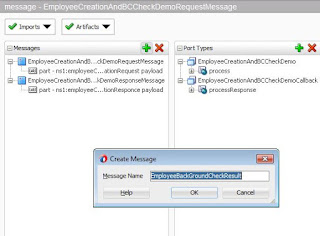
3. Now add a payload part and add the message element.

4. Now add a new port for the check results, service and then add the operations and select the backroundcheckresult element type.


5, Now drop a soap service on the exposed side and select the wsdl we modified and choose for the new port type, which is employeeCheckResult.


5. Now add the wire between the BPEL and new SOA service we exposed.

This has completed and we exposed first service as initiator and then second as a service for the correlation.
Now its done and we need to complete the BPEL and modify the correlation.
Correlation and BPEL Completion.
1. Once its done then create the following
1. Assign activity, just to assign success to the payload.


4. Add the input variable as given in the below picture.

5. once done add a if block assign failure if background check send a fail status.

Now our process is complete and we are ready to correlate both the service. click the first activity and right click over it and select for the create corrlation and follow the screenshots as given


Now select the activity and say initiate = yes.

Now select for the element which will be used as a key for the corrlation.

Now select for the activity which will correlate, in this case our receive activity will correlate with a already running process.

Please check if you have both the aliase created.

Once done your process is ready for the deployment.
Deploy this process on the weblogic server and then first initiate the main process using the payload
you can also use following endpoints to test in the SOAPUI.
1. WSDL for the invoking
http://localhost:port/soa-infra/services/default/EmployeeCreationCheckCorrlation/employeecreationandbccheckdemo_client_ep
2. WSDL for correlation.
In soapui provide the message as given below and here candidate id is the key, which relate between two processes.
Request 1.

request 2.

End result.
Like we start the recruitment of an employee and process of employee creation been started. In between process will stop and will run further once we provide any input from the service which is for the background check.
Other requirement is webservice addressing, like from BPEL if we are calling a service A and then A will call service B and we want B to provide response back to initiator BPEL process, then we need concept of webservice addressing.
Hence until we received any input from the other service, first service will stop. The other challange in this is there are multiple may be running, hence to correlate we need some key. In this example we can take employeeId as a key for the correlation.
Hence collaboration set should be unique and BPEL process based on the correlation id decide which process it need to map.
Now taking the example, lets first create the Schema and then WSDL, post that we will create the BPEL process.
1. Schema :- In this example we are using a very simple schema of employee and his background check. Candidate Id is been used as a key, which will be unique for all the processes. Please copy the EmployeeBackgrpundCheck.xsd from the main process.
2. Creating the Application,
2.1) From the jdev -> File -> New Application and choose for a SOA application

2.2) Provide a name to the application "SOACorrlationDemoApp".

2.3 Provide the project name and say next

2.4 Choose empty composite and provide the composite name. as "EmployeeCreationCheckCorrlation".

2.5 Now create the schema first, you can create the schema or copy if from our project, which is available for download copy the file "EmployeeBackgrpundCheck.xsd" to your project.


1. Now Drop BPEL from the components to composite and name is EmployeeCreationCheckCorrlation, change the property to asynchronous.


2. Now BPEL creation is completed and we need to add one message for invoking the service in middle hence open the WSDL which is just now created and add a message type as given below.

3. Now add a payload part and add the message element.

4. Now add a new port for the check results, service and then add the operations and select the backroundcheckresult element type.


5, Now drop a soap service on the exposed side and select the wsdl we modified and choose for the new port type, which is employeeCheckResult.
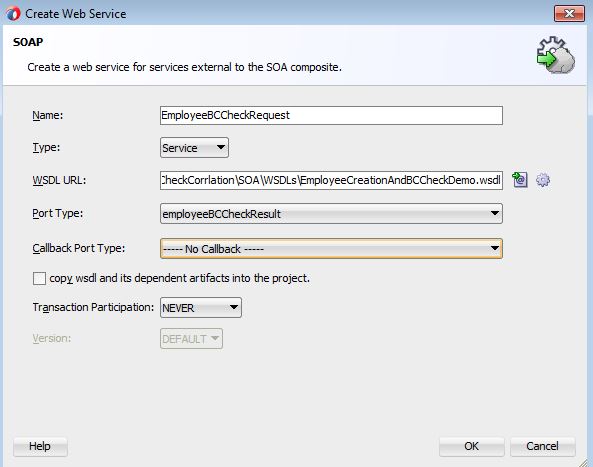

5. Now add the wire between the BPEL and new SOA service we exposed.

This has completed and we exposed first service as initiator and then second as a service for the correlation.
Now its done and we need to complete the BPEL and modify the correlation.
Correlation and BPEL Completion.
1. Once its done then create the following
1. Assign activity, just to assign success to the payload.

2. Now add a receive activity, and select for the partner link and choose for employeeBCCheckRequest.

4. Add the input variable as given in the below picture.

5. once done add a if block assign failure if background check send a fail status.
Now our process is complete and we are ready to correlate both the service. click the first activity and right click over it and select for the create corrlation and follow the screenshots as given

Create a new Corrlation set and name it as given below.

Now select the activity and say initiate = yes.

Now select for the element which will be used as a key for the corrlation.

Now select for the activity which will correlate, in this case our receive activity will correlate with a already running process.

Please check if you have both the aliase created.

Once done your process is ready for the deployment.
Deploy this process on the weblogic server and then first initiate the main process using the payload
you can also use following endpoints to test in the SOAPUI.
1. WSDL for the invoking
http://localhost:port/soa-infra/services/default/EmployeeCreationCheckCorrlation/employeecreationandbccheckdemo_client_ep
2. WSDL for correlation.
In soapui provide the message as given below and here candidate id is the key, which relate between two processes.
Request 1.

request 2.

End result.

Download
Please use the link to download the sample. Download Link
Exercise
1. Complete the Sample with DB adapeter to insert a employee if background get successfull,
2. Add email id and use it for the correlation.
Please provide your feedback, we will try to improve.