Showing posts with label Deployment. Show all posts

Monday, 9 May 2016

Test a SOA Application using EM Console or SOAPUI

In this post we will discuss about the deployment and testing of the SOA application.  We have already described, how to start a SOA server and how to deploy a composite over it in the last post .


 Now in this post we are going to test our application using two methods

1. Using Enterprise Manager 
2. Using SOA UI (Need SOAP UI software) Open Source is recommended.


1. Using Enterprise manager 
  a. Your integrated sever should be up and running for this step, if not then run it using the Run-> Start integrated server and now go to http://locahost:<Port>/em . This is the same port which you configured in our last post .


 b. Enter weblogic user name and password, this is same user and password which we configure in the last blog. Once enter this window will open up click on SOA folder.


  c. No Open SOA infra and then click on the composite we have deployed, so far we have only deployed the Activity1 Composite hence we are going to use this composite only. Click on it.


d. It will show the different option available for it now lick on the test button.

e. Provide some value for the input its mandatory, once done click on the button test webservice. 


f. It will show you output which is response of the webservice. 


h. This is end of testing of webservice using the EM Console. 


2. Testing Using SOAPUI  


Now we will see how to test same application using the SOAPUI. You need to first install the SOAUP and open up the application. 


a) First take the WSDL from the EM Console 
 b). Download and SOAPUI and open the application.

 c) This will open a UI like given below.

  d) Now add a new project and add the WSDL to it it will create not only project but one Request message.
f) Once open create a new project and then add the WSDL from EM. Give some value to the input


g) Now click on the test webservice button and it will give you response on other window.


f) Test the application is now completed using the SOAPUI.


Start and Configure an Integrated Server (12C)

We will use this blog for the multiple Blogs, because the process to deploy will remain same for the multiple applications.

 We want to emphasis again that we are using 12C BPM jdeveloper  through out our tutorials. If you  are using any other jdeveloper, please either remove and install this jdeveloper, else you can install both jdeveloper but keep in mind both should not use the same Jdev Home.

I will explain how can you use multiple jdev home in some other post, using a single jdev.


1.  Now we are going to create domain for our SOA suite application, this domain we will use in all our posts. 


2. Remember this domain is only for the development use and its a feature of 12c, this support (Running SOA over the integrated domain ) was not available in 11g.


3. Go to Run and click on Start Server Instance (Integrated domain).


4. It will ask for certain details like Admin Id normally for development keep it as it is.  Password anything you can remember, I advice for the Weblogic1. Port on which your server will run you can keep default also but I have multiple server running hence choose for a different port.


5. This is info screen check SOA Development Template should be there else definitely something has gone wrong. You need to reinstall your jdeveloper. 


6. Once done say Ok your server is no ready to be launched, SOA domain need some 10-20 Min to configure. Go have a sip of tea :-).  Now automated process will not only create domain but also lunch the server for you. 


8. Keep on checking the log window until it say  server is running.  Just some points to remember it use a java database for keeping the SOA server information. Hence still the SOA infra is there but now instead of a Oracle database its been kept in the lightweight java database.  We can use this data base for some smaller development. 


9. Now Server is up and you can install your project over it. Go to you application and then Project and then right click on project --> Deploy.


10. Select to deploy to an Application server.

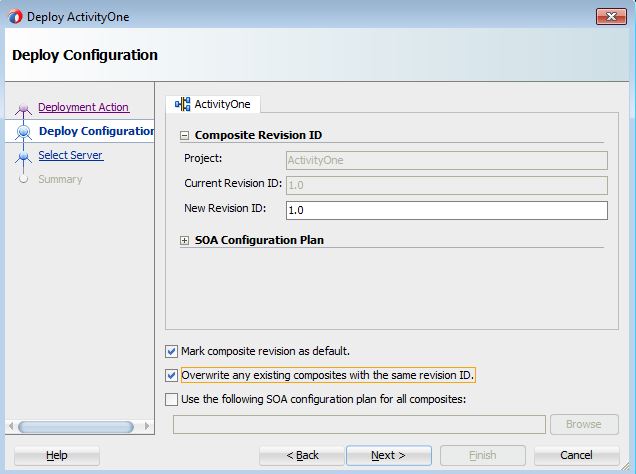
11. Now give a revision to deploy, there could be multiple revision of a Application can be deploy on same server.  


12. Now choose Integrated server, it gives you an option to add a new server too, if you are running a different weblogic server, you can configure here and it will start reflecting from the next time. Its a one time configuration.


13. If server is up it will show the server in this window. 

15. Summary window will display the entire summary about the deployment.

 16.  Deployment window will display information about the composite deployments. If everything Ok then it simple deploy the composite over server.


Next post we are going to show how to test a composite over a server.